
Note:
You can upgrade ISL AlwaysOn in the following ways:
b.) Upgrade from my account through "Bulk action" for multiple computers
c.) Upgrade from the "About" dialog from the ISL AlwaysOn tray icon (described below).
This option triggers the ISL AlwaysOn application on selected computer to search for available updates and installs them. Progress notifications will be shown above the list of computers in Remote Access tab of your account.
Step 1
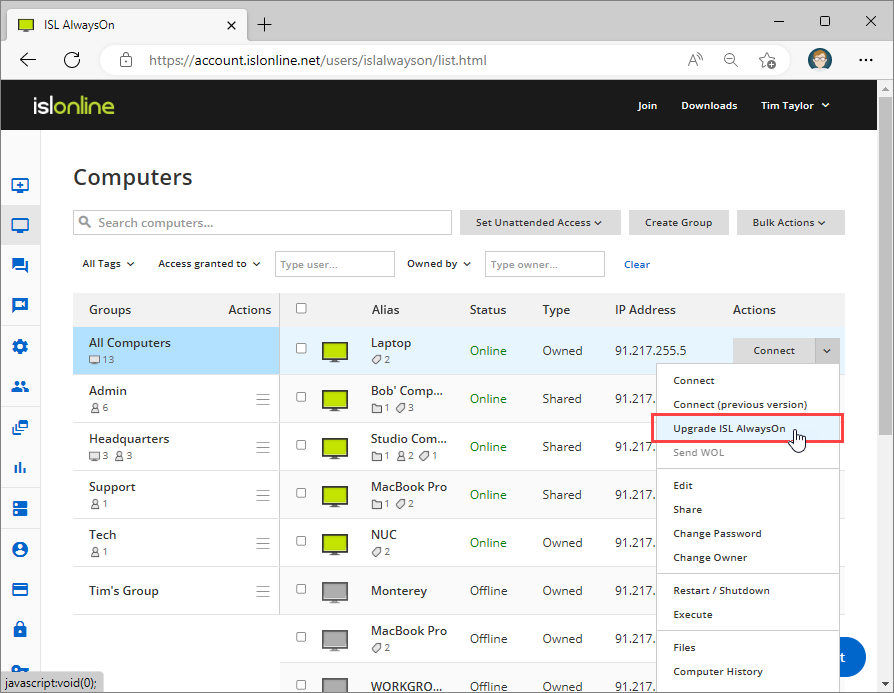
Click "Upgrade ISL AlwaysOn" from computer dropdown menu.
Step 2
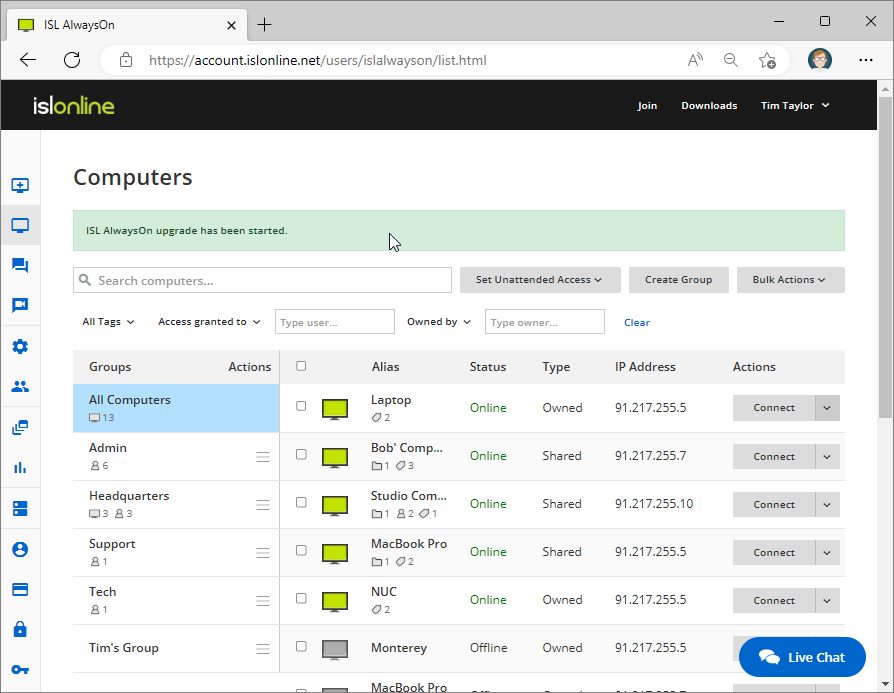
ISL AlwaysOn Upgrade has been initiated.