
Step 1
Log in to your account and open the License page from the sidebar.
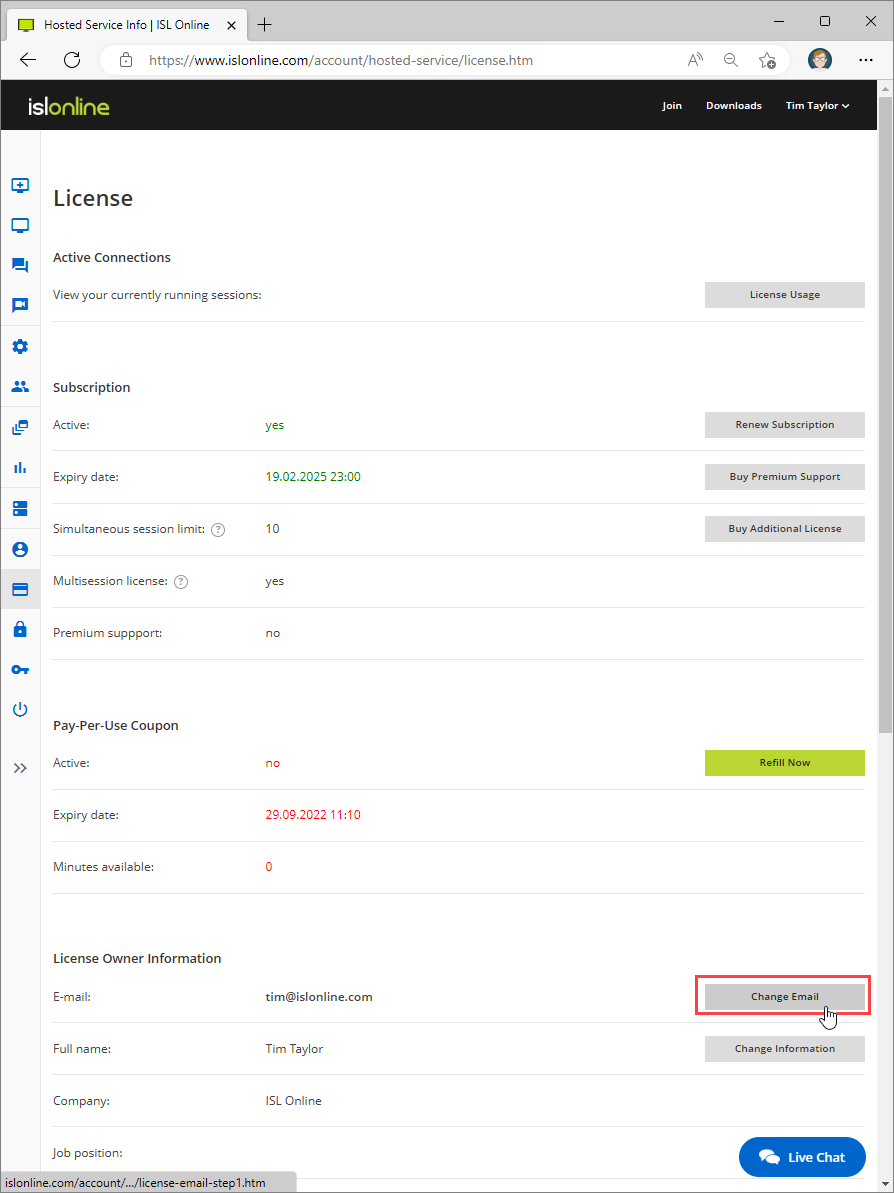
Click "Change Email" button to change the license owner.
Step 2
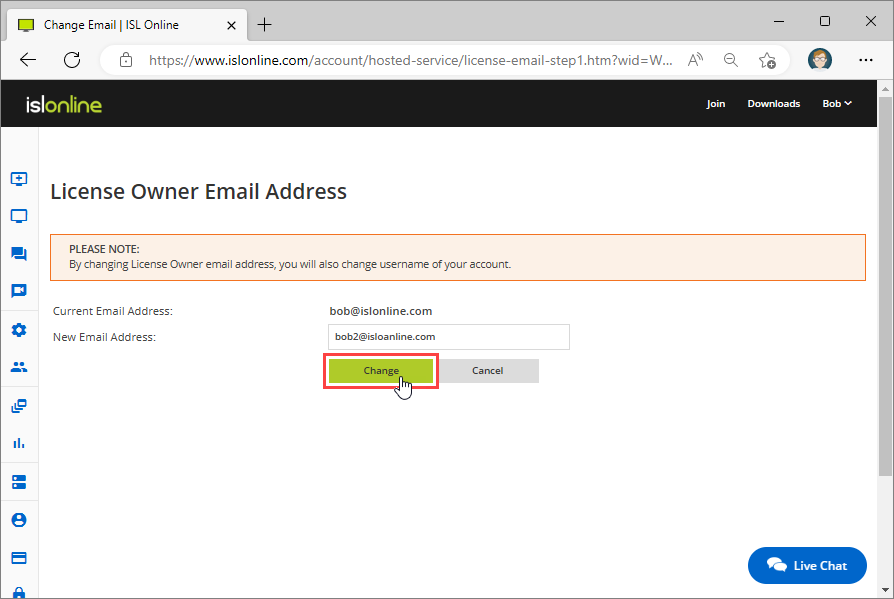
Enter the new email address (for example, bob2@islonline.com) and click "Change" button to trigger the email change procedure.
Step 3
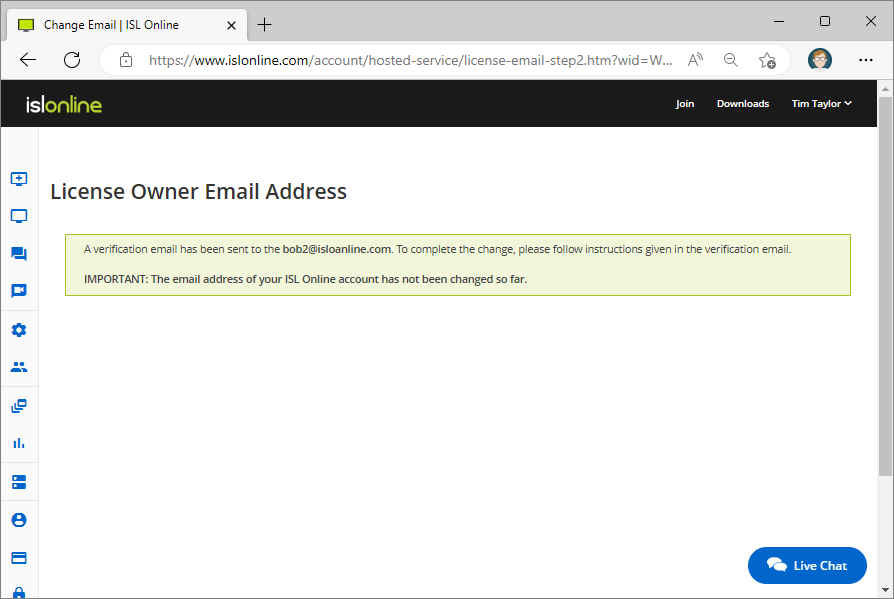
A verification email has been sent to the new email address (bob2@islonline.com).
Step 4
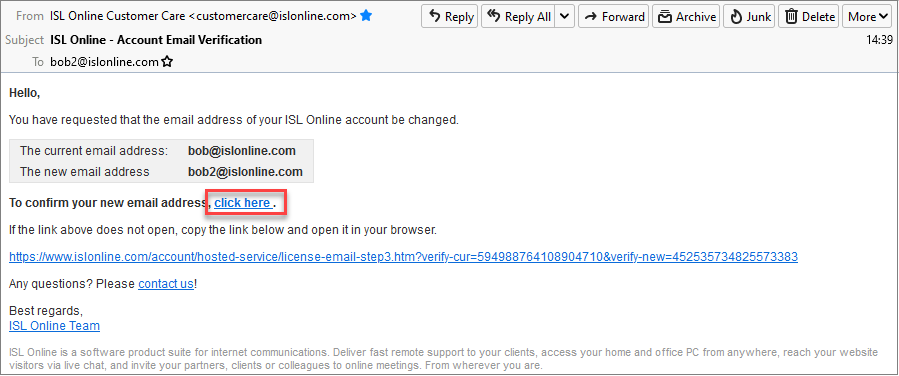
Open the verification email and click the "click here" link to verify the new email address.
Important: The email address has not been changed yet. In the next step, you will need to log in using your old email address (bob@islonline.com) to approve the change.
Step 5
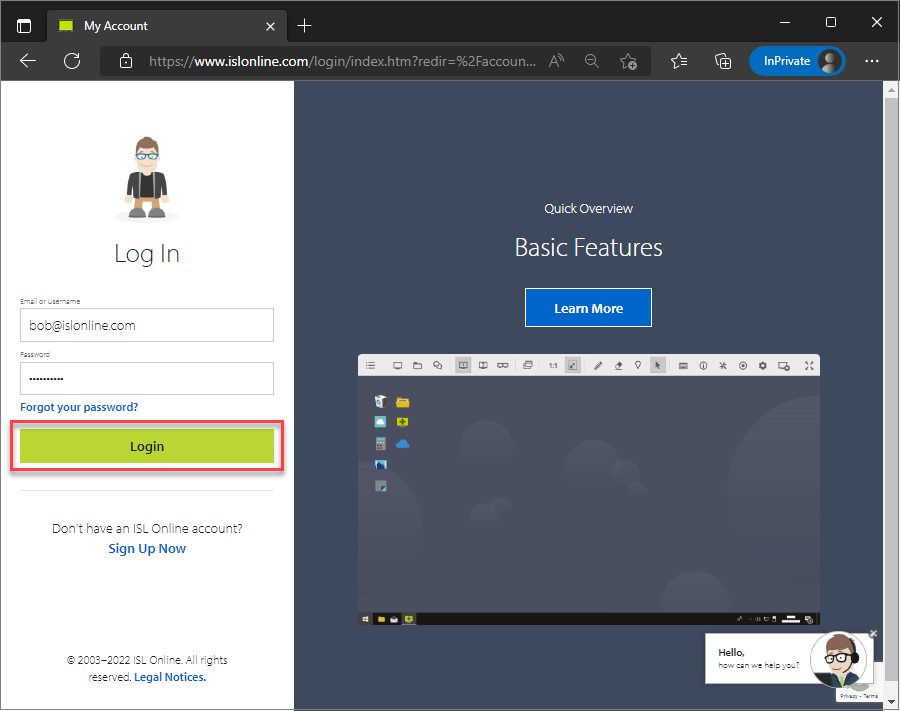
Log in with the "old" email address (bob@islonline.com).
Important: If two-factor authentication (2FA) is enabled for your account, you will also need to complete the second authentication step to log in.
More information regarding multi-factor login is available here: Security (2FA).
Step 6
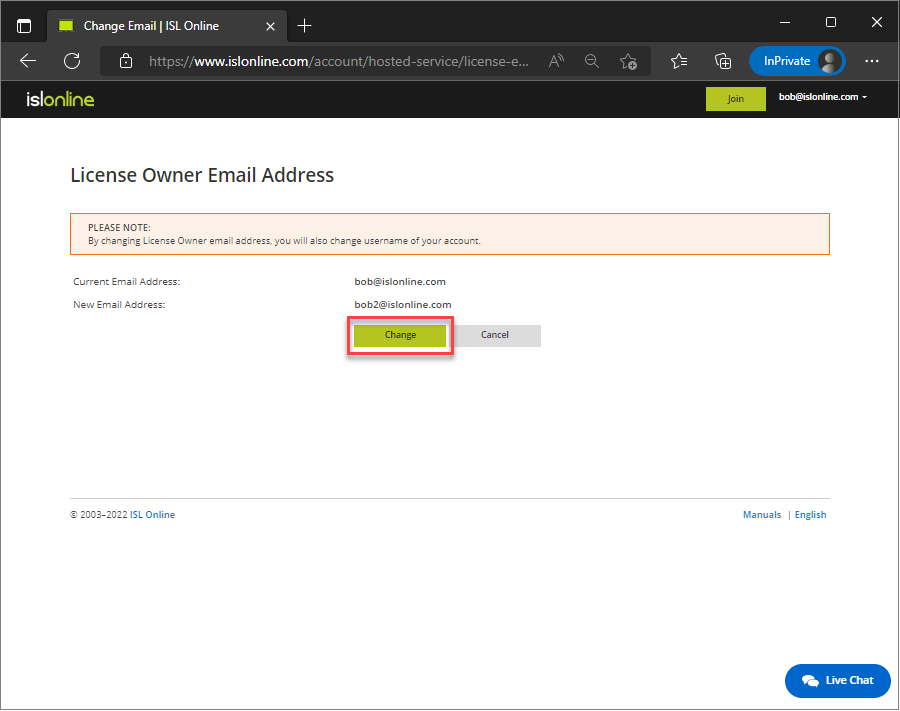
Click "Change" to confirm the new email address. You will be logged in with new email and the license owner email and username will be changed.
Step 7
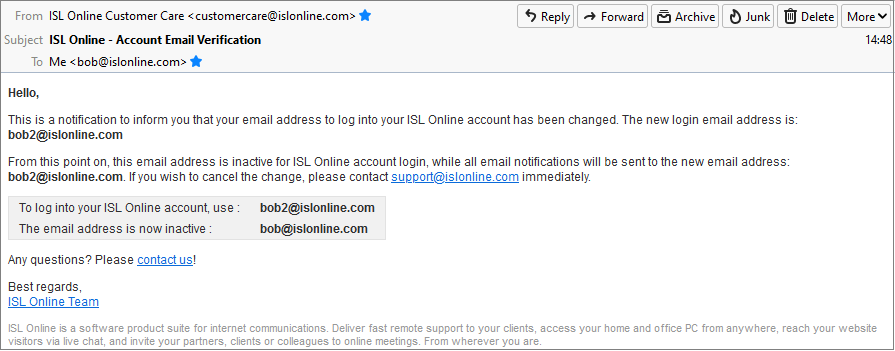
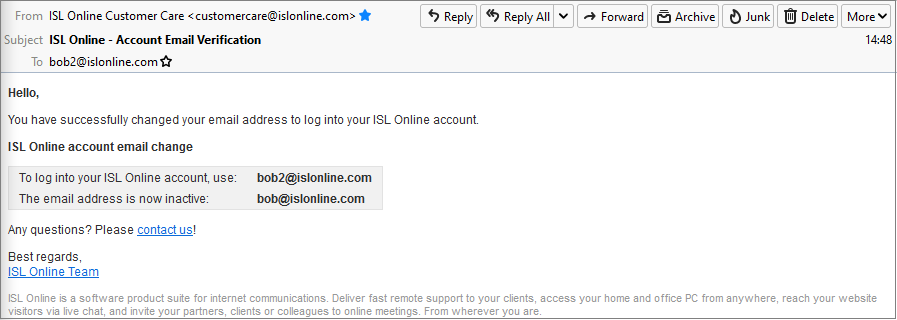
Notification is sent to the "old/inactive" email (bob@islonline.com) and the "new" email address (bob2@islonline.com).
Step 8
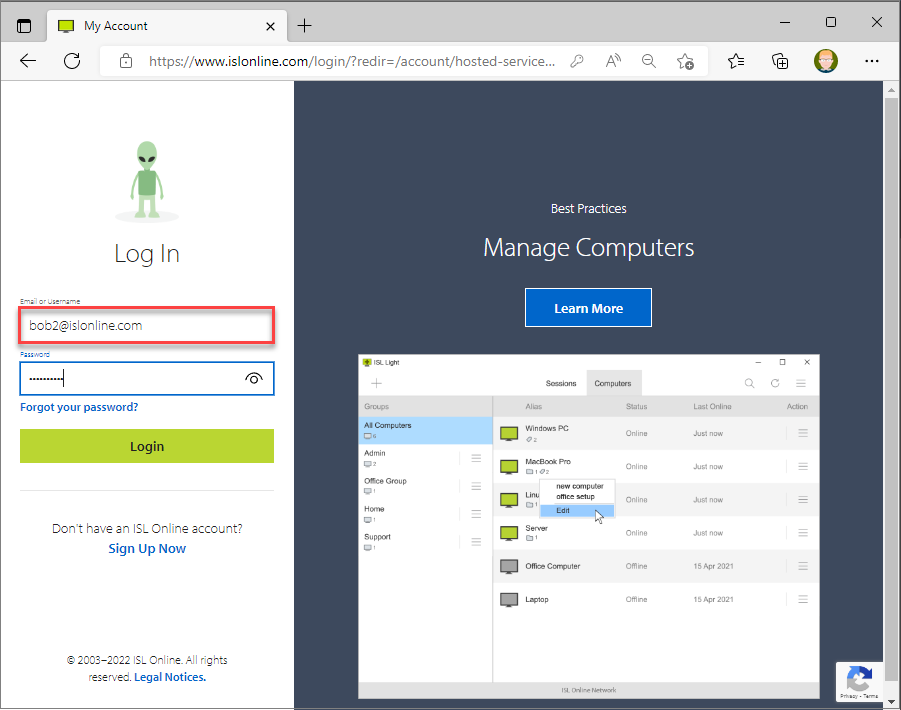
From now on you need to log into your account with the "new" email. The old email has been removed and is not associated with your account any more.