
The following options are available in the Desktop Menu:
- View Desktop
- Share Desktop
- Share particular screen region, application or monitor
- Block Remote Input
- Request Control
- Display Area
- Stop Desktop Streaming

View Desktop

Click "View Desktop" from the desktop drop-down to begin viewing the remote desktop. Alternatively, you can click on the green button "View Remote Desktop" in the middle of the application window.
Note: If you are connected to your own computer then viewing your own screen will cause it to be displayed as a nested image within itself. You will be prompted to confirm this action.
Share Desktop
Note: "Share Desktop" feature is not available when connecting from ISL Light to ISL AlwaysOn (Unattended Access).
Step 1

Click "Share Desktop" from the desktop drop-down to share your screen.
Step 2

Click the "Show" button to confirm.
Step 3
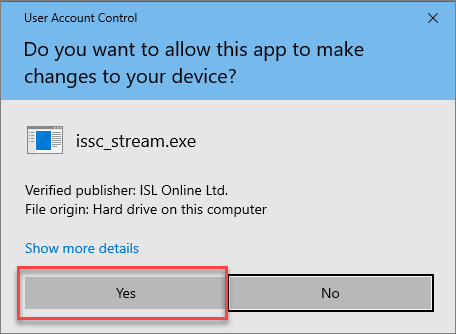
Confirm UAC by clicking the "Yes" button.
Step 4

You are now sharing your screen with the other side.
Share particular screen region, application or monitor
You can also share only one monitor, application or particular region of your screen.
Step 1

Click "Share Desktop" from the desktop drop-down to share your screen.
Step 2

In order to share only a particular monitor, application, or screen region, click on "Show Options".
Step 3

Click the "Choose" button.
Step 4

Select the screen region, application or monitor you wish to share with your client.
Block Remote Input
Use "Block Remote Input" option to stop the remote side from being able to use their mouse and keyboard. This can be useful to stop them from interrupting your control of the computer.
Note: The remote user can press ESC at any time to stop their inputs being blocked.
Step 1
Click "Desktop" -> "Block Remote Input"

Step 2
The remote side must accept the warning message by clicking "Block".

Step 3
After the remote user has accepted the warning, the toolbar feature will switch to "Allow Remote Input", and an indicator will be shown in the bottom-right of the session window showing "Remote Input Blocked".

Request control

If you do not have control of the remote computer (e.g. it was disabled or not allowed in the first place) you can Request Control. Remote user will have to approve this action.
Display Area
You can choose between viewing the entire remote screen or only a custom region of the remote desktop.

Stop Desktop Streaming

To stop desktop sharing, press on the "Stop Desktop Streaming" in Desktop drop-down menu.